Power features
The gallery and downloading your work
Where outputs land, how to filter them, and how to pull MP4s and PNGs to your machine.
3 min read
In short: Every Flovaly output lands in the gallery, newest first. To download a video, click its tile to open the preview pane and hit the download button — videos save as MP4 (with stripped WAV or MP3 audio available), images as PNG, all at original resolution with no watermark on paid-plan output.
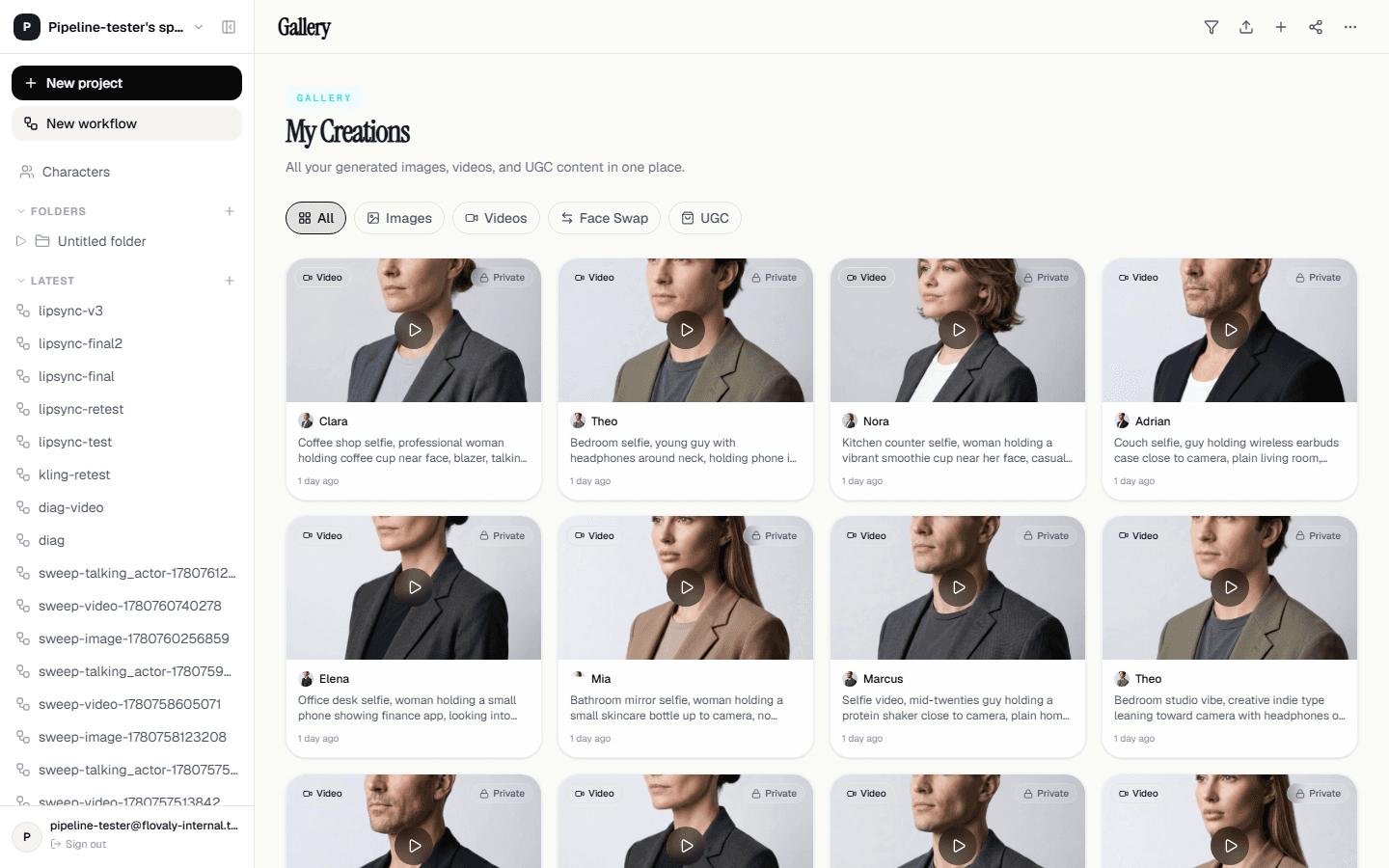
Every output from every mode and every workflow lands in the gallery. This guide covers how to find a specific clip in there, how to mark the ones you like, and how to pull MP4s and PNGs to your machine.
Where outputs land
The Studio routes you to the gallery automatically the moment a job finishes. Workflow runs do the same. New tiles slot in at the top of the grid — the gallery is ordered newest-first by default.
Each tile shows a still preview. Videos get a small Video badge in the corner; on hover they autoplay muted so you can scan without clicking.
Filter the grid
The top of the gallery has a filter row. Three useful filters live there:
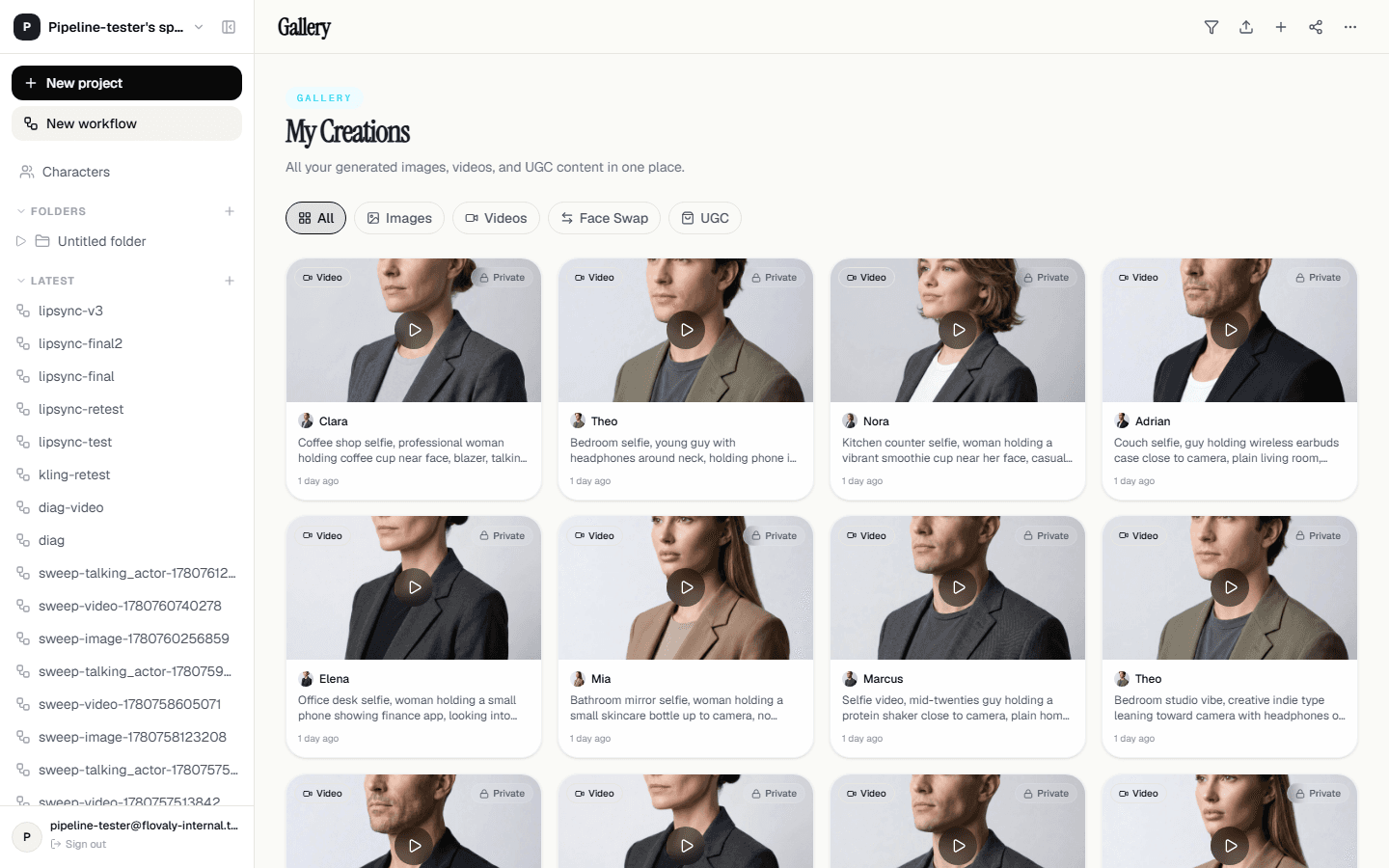
- Type — images, videos, or both. Toggling away everything but videos is the fastest way to find a finished clip.
- Project — narrows to a single project (see Organising work into projects).
- Workflow run — every workflow execution shows up as a runnable group, so you can review all outputs from one run in one place.
Inspect a single output
Click any tile. A preview pane opens — full-size on desktop, a full-screen sheet on mobile. The right-side panel shows the prompt, character, voice, and any other input that produced the clip. Everything you need to reproduce or tweak the generation is one click away.
Download
The download button in the preview panel pulls the file directly:
- Images download as PNG.
- Videos download as MP4. Stripped audio (WAV or MP3) is available on the same menu.
Files keep their original resolution — what you generated is what you get. There's no watermark on paid-plan output.
Favourites
Hit the heart icon on any tile (or in the preview pane) to mark it as a favourite. Favourites get their own filter chip at the top of the gallery — useful for building a shortlist you can send to a client or a teammate without having to remember tile positions.
Share a link
The share icon copies a public URL straight to your clipboard. Send that link to anyone — they don't need a Flovaly account to view or play it.
Re-run from the gallery
From the preview pane, the Re-runbutton drops the clip's settings straight back into the Studio. Tweak the prompt, swap the voice, change duration — whatever you want — and run again. The new render appears next to the old one in the gallery so you can compare.
What next
To keep your gallery navigable, the single highest-impact thing is scoping work into projects. Curious what each render actually costs? See Credits, plans, and billing.
Frequently asked questions
What file formats do downloads use?
Images download as PNG and videos as MP4, both at the resolution you generated. Stripped audio is available as WAV or MP3 from the same menu, and there is no watermark on paid-plan output.
Can I share a clip with someone who has no Flovaly account?
Yes. The share icon copies a public URL to your clipboard — anyone with the link can view or play the clip without signing up.
How do I find a specific clip quickly?
Use the filter row at the top of the gallery: toggle to videos only, narrow by project or workflow run, or use the favourites chip if you hearted it. Combining type and project filters is the fastest route.
Can I re-run a generation with small changes?
Yes. The Re-run button in the preview pane drops the clip's settings straight back into the Studio — tweak the prompt, voice, or duration and run again. The new render appears next to the old one for comparison.
Was this useful? Email us if anything's missing.
Next