Power features
Organising work into projects
Scope generations to a project so its gallery stays focused on one piece of work.
3 min read
In short: A project in Flovaly is a folder for related generations: every render you start inside a project is automatically tagged to it, the Studio's recent row scopes to it, and the gallery can filter by it. Create one from the New project button in the sidebar — one project per campaign or client is the recommended grain.
A project in Flovaly is a folder for related generations. It's how you keep one campaign's footage from bleeding into another's, and how you keep the gallery sane after a few hundred renders.
What a project actually does
Every generation in Flovaly is stamped with the project it was kicked off from. When you switch into a project, three things scope to it:
- The Studio's recent generations row shows only that project's output, so an empty new project starts clean instead of showing your lifetime feed.
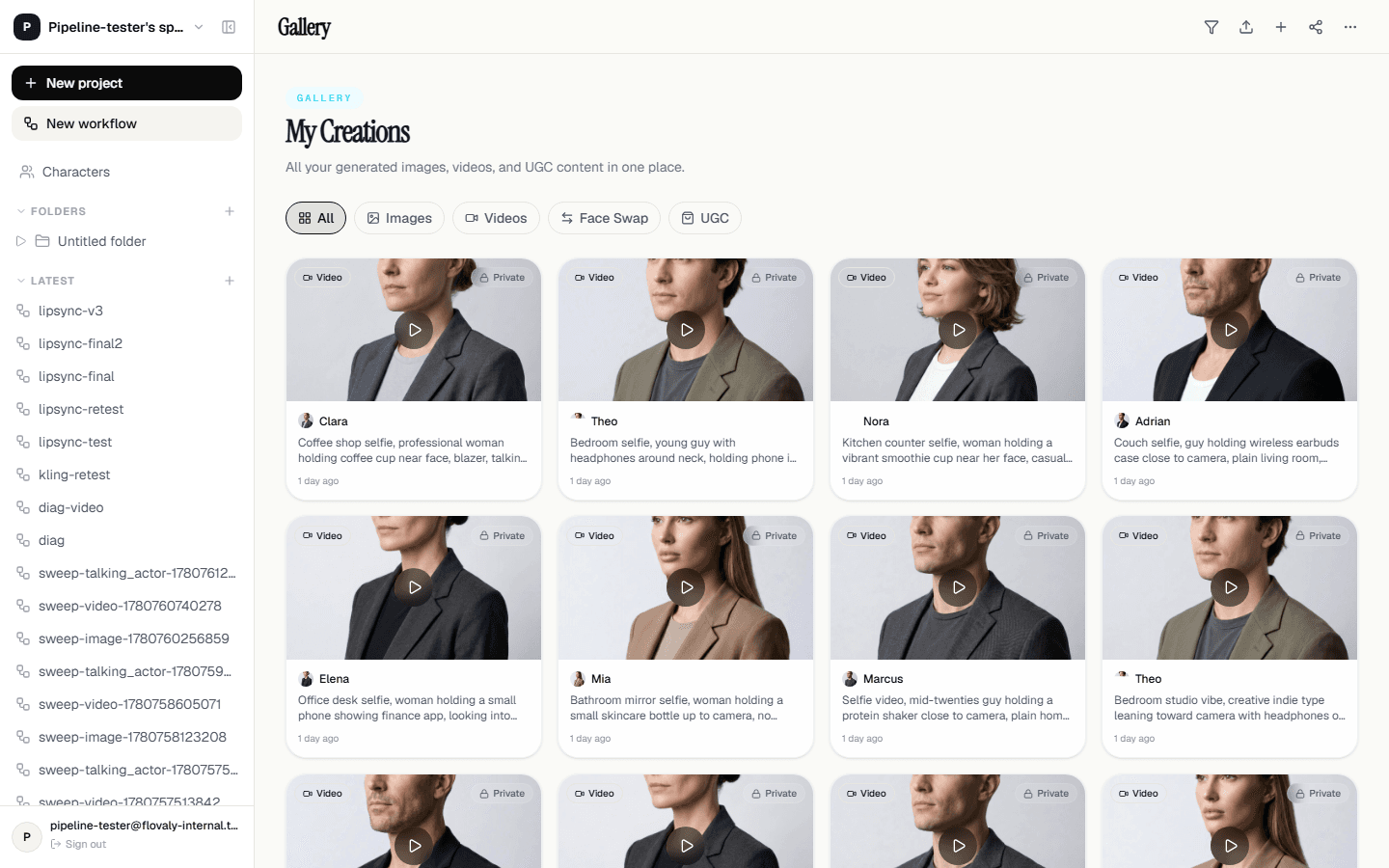
- The gallery can be filtered to a single project from the sidebar.
- Any new generation you start while inside the project is automatically tagged to it. No extra step.
Workflows, characters, and credits are all global — they're available from every project.
1. Create a project
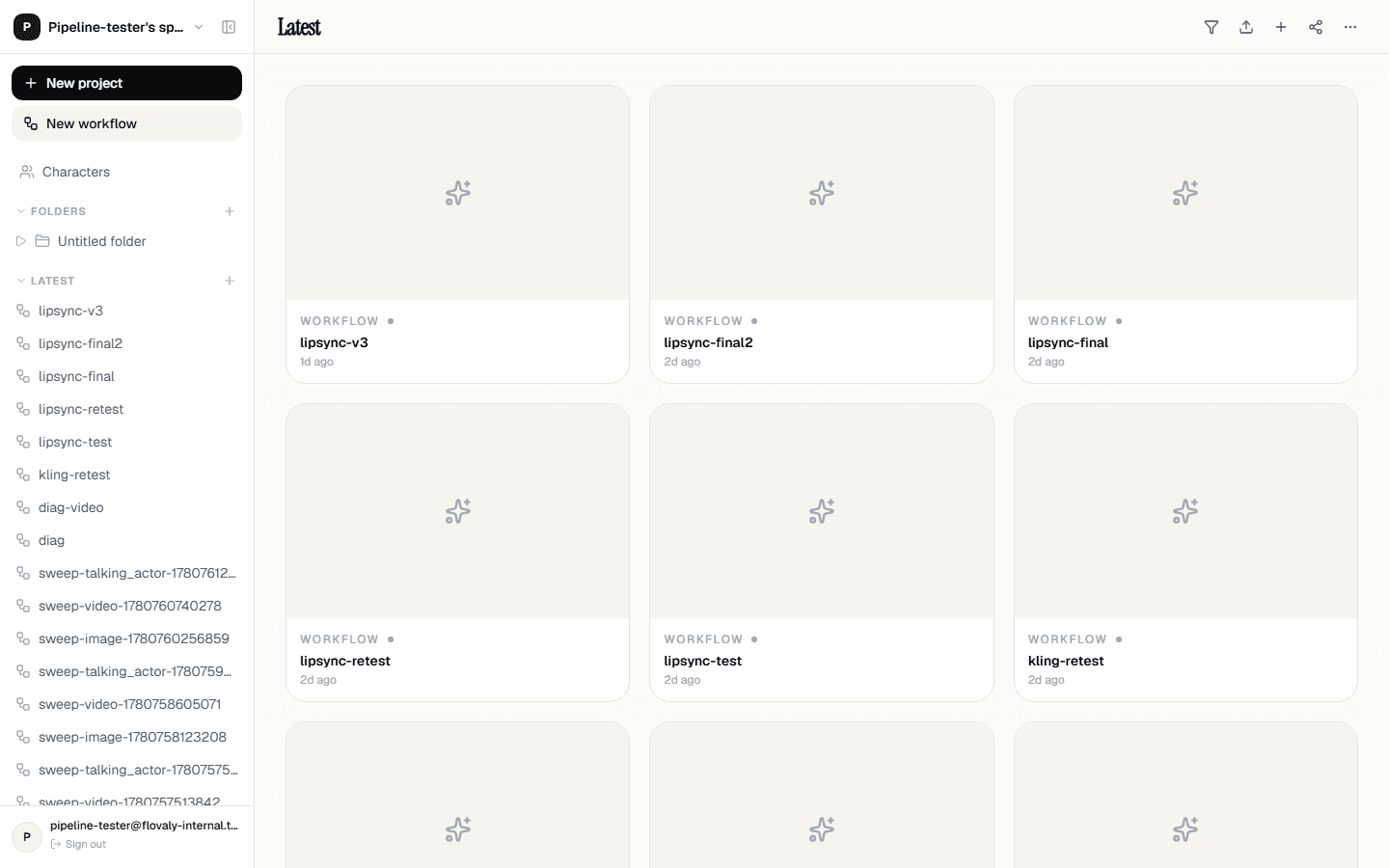
In the left sidebar, click New project. The prompt asks for a name only; that's the whole creation flow. The project appears in the sidebar under your existing ones, and you're taken straight into it — the Studio header now shows the project name in place of “New project”.
2. Generate inside it
Open the Studio. The composer behaves exactly as it does outside a project — pick a mode, pick an actor, type your prompt, hit Run. The difference is that every output lands inside this project's bucket. The URL carries a project query parameter so the tagging is bullet-proof even across tabs.
3. Switch between projects
Click any project in the sidebar to switch. The header updates, the Studio's recent row refreshes with that project's content, and your next generation will be tagged to the new project.
To work outside any project (just hit Run and let it land in the global gallery), click the top-level Studio entry in the sidebar.
4. Filter the gallery
From Gallery in the sidebar, the filter row across the top includes a project selector. Pick a project and the grid narrows to only that work. Combine with the type filter (image / video) to find a specific clip fast.
How we recommend using projects
- One project per campaign or client. Coarse enough to be useful, fine enough to not require constant context-switching.
- Use the project name like a tag. Something like “Q3 launch — static ads”tells you at a glance what's inside.
- Don't over-split. A project per generation is just the gallery. A project per campaign is what makes the feature pull its weight.
What next
Read The gallery and downloads for how to find and pull your work once it's scoped into projects, or Workflows — what they are for the second major way to organise repeatable work.
Frequently asked questions
What does a Flovaly project actually scope?
Three things: the Studio's recent generations row shows only that project's output, the gallery can be filtered to the project, and every new generation started inside it is automatically tagged to it.
Are workflows, characters, and credits project-specific?
No. Workflows, characters, and credits are all global — they are available from every project. Only generations are scoped.
How many projects should I create?
One per campaign or client. That is coarse enough to be useful and fine enough to avoid constant context-switching — a project per generation is just the gallery again.
Can I generate outside of any project?
Yes. Click the top-level Studio entry in the sidebar and your generations land in the global gallery rather than a project bucket.
Was this useful? Email us if anything's missing.
Next