Power features
Workflows — what they are
The visual node canvas. When workflows beat Studio for repeatable pipelines.
4 min read
In short: A Flovaly workflow is a visual node canvas where you wire generation steps — text inputs, image and video generation, talking actors, tools — into a pipeline you can run again and again with different inputs. Workflows beat the one-off Studio composer when you repeat the same pipeline, need branching, or want to inspect the output of every intermediate step.
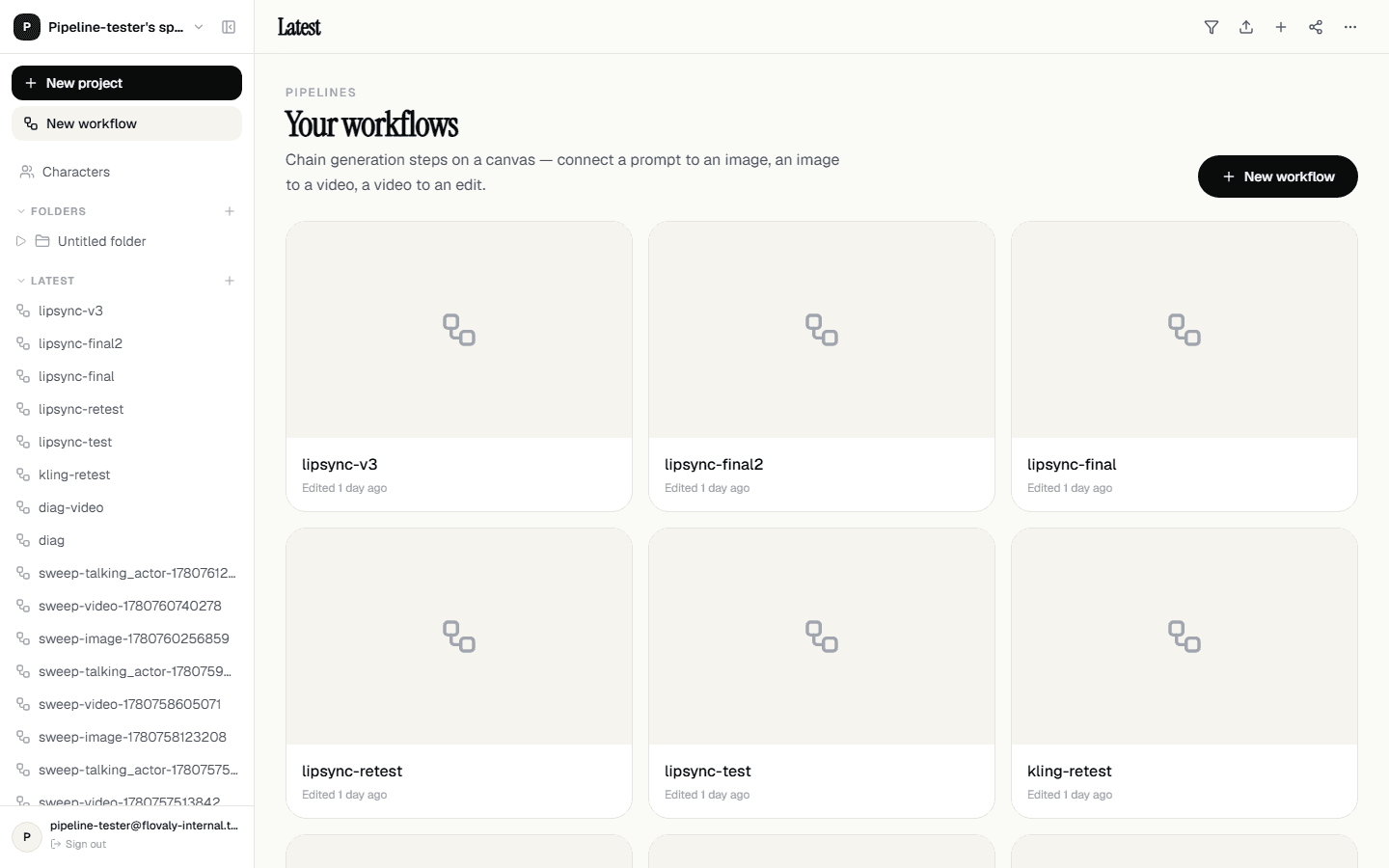
Workflows is the second major surface in Flovaly. Where the Studio is a single composer for one-off generations, workflows are a visual canvas where you wire generation steps together into a pipeline you can run again and again with different inputs.
The canvas
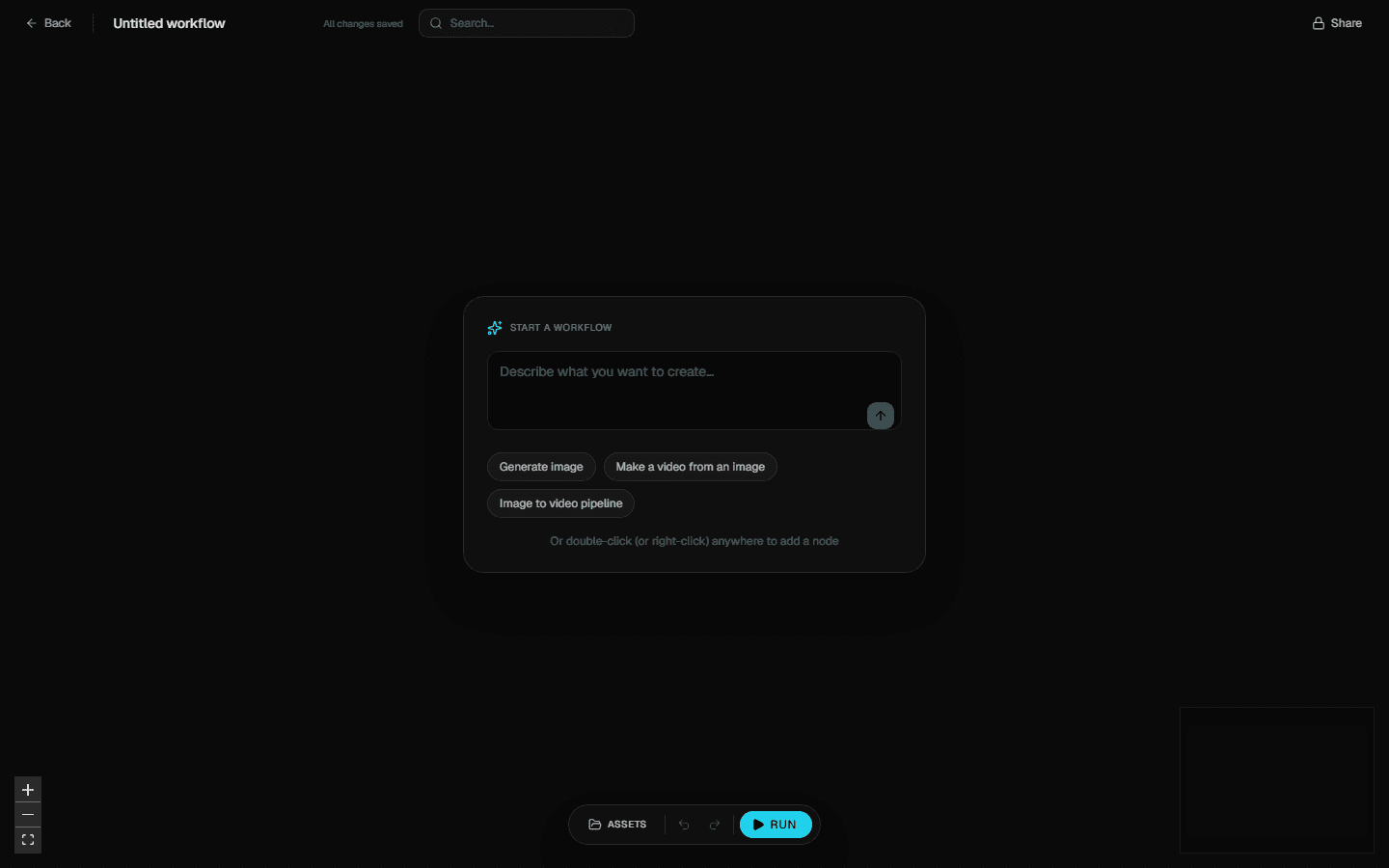
Open Workflows from the sidebar and pick New workflow. The screen turns dark — workflows always render on a black grid canvas regardless of your theme — and you're looking at an empty graph.
Pan by click-dragging the background. Zoom with the scroll wheel or the controls at the bottom. The minimap in the bottom corner is useful once the graph grows.
Why workflows beat the Studio for some jobs
The Studio is unbeatable for one-shot generations. Workflows win when:
- You repeat the same pipeline.If you keep running script → image → video by hand, that's a three-node workflow you build once and rerun forever.
- You need branching. One source clip fanned out into three styled variants. A single prompt run through three different models for comparison.
- You want the intermediate outputs. The Studio hides everything except the final result. Workflows show you the output of every node, so you can debug a chain when one step misbehaves.
The right-click menu
Right-click anywhere on the canvas and you get the node-picker menu. It's organised by category — Generation, Inputs, Models, Presets, Tools, Upload — and has a search field at the top so you can type the node name directly.
The same picker opens when you double-clickon empty canvas. Click is for navigation; double-click is for adding nodes. That muscle memory pays off once you're building larger graphs.
The node categories
- Generation — Image, Video, AI Video Editing, LLM, Enhance Prompt, Talking Actor. The actual rendering work happens here.
- Inputs — Text Input. The free-form starting point of most chains.
- Models — Image Models, Video Models. Override which underlying model a generation node uses.
- Presets — Saved configurations you can drop into a graph.
- Tools — Utilities like resize, concat, extract frame.
- Upload — Drop in an existing image or video as input.
Connecting nodes
Every node has typed input and output handles colour-coded by data type — strings are blue, images are purple, videos are pink, audio is green. Drag from an output handle to an input handle to connect them. The handle colours stop you wiring an image into a string socket; the canvas refuses incompatible connections.
Running
The action bar at the top of the canvas has a Run button. It executes the graph end-to-end, streaming progress per node. Outputs land in the gallery just like Studio generations, tagged with the workflow run they came from.
Your graph autosaves continuously — the saved-at indicator next to the title shows the last sync.
What next
For a concrete first build, see Building your first workflow. Once you have a workflow you like, use projects to keep its outputs grouped.
Frequently asked questions
What is a Flovaly workflow?
A visual canvas where you wire generation steps together into a repeatable pipeline. Nodes cover generation (image, video, talking actor, LLM), inputs, model overrides, presets, tools, and uploads — connect them with typed, colour-coded handles and run the whole graph with one click.
When should I use a workflow instead of the Studio?
When you repeat the same pipeline (a script-to-image-to-video chain you keep running by hand), when you need branching (one source fanned into three variants), or when you want the intermediate outputs visible so you can debug a chain step by step.
How do I add nodes to the canvas?
Double-click on empty canvas or right-click anywhere to open the node picker. It is organised by category — Generation, Inputs, Models, Presets, Tools, Upload — with a search field at the top.
Where do workflow outputs go?
Outputs land in the gallery just like Studio generations, tagged with the workflow run they came from, so you can review everything from one run in one place. The graph itself autosaves continuously.
Was this useful? Email us if anything's missing.
Next