Generation modes
Generating videos from text
Studio Video mode — prompt structure, duration, and what 1080p actually costs.
5 min read
In short: To generate a video from text on Flovaly, switch the Studio composer to the Video tab, describe the shot using concrete visual language — subject, action, setting, camera — and choose a duration (5, 10, or 15 seconds) and resolution (720p or 1080p). Duration is charged linearly and 1080p costs more per second, so draft at 720p and re-render the final version at full quality.
Video mode renders clips from a text prompt. No script, no speaking — you describe the shot and the model returns it. This guide covers the controls, how to write prompts that produce usable footage, and what each duration and resolution choice actually costs.
1. Switch to Video
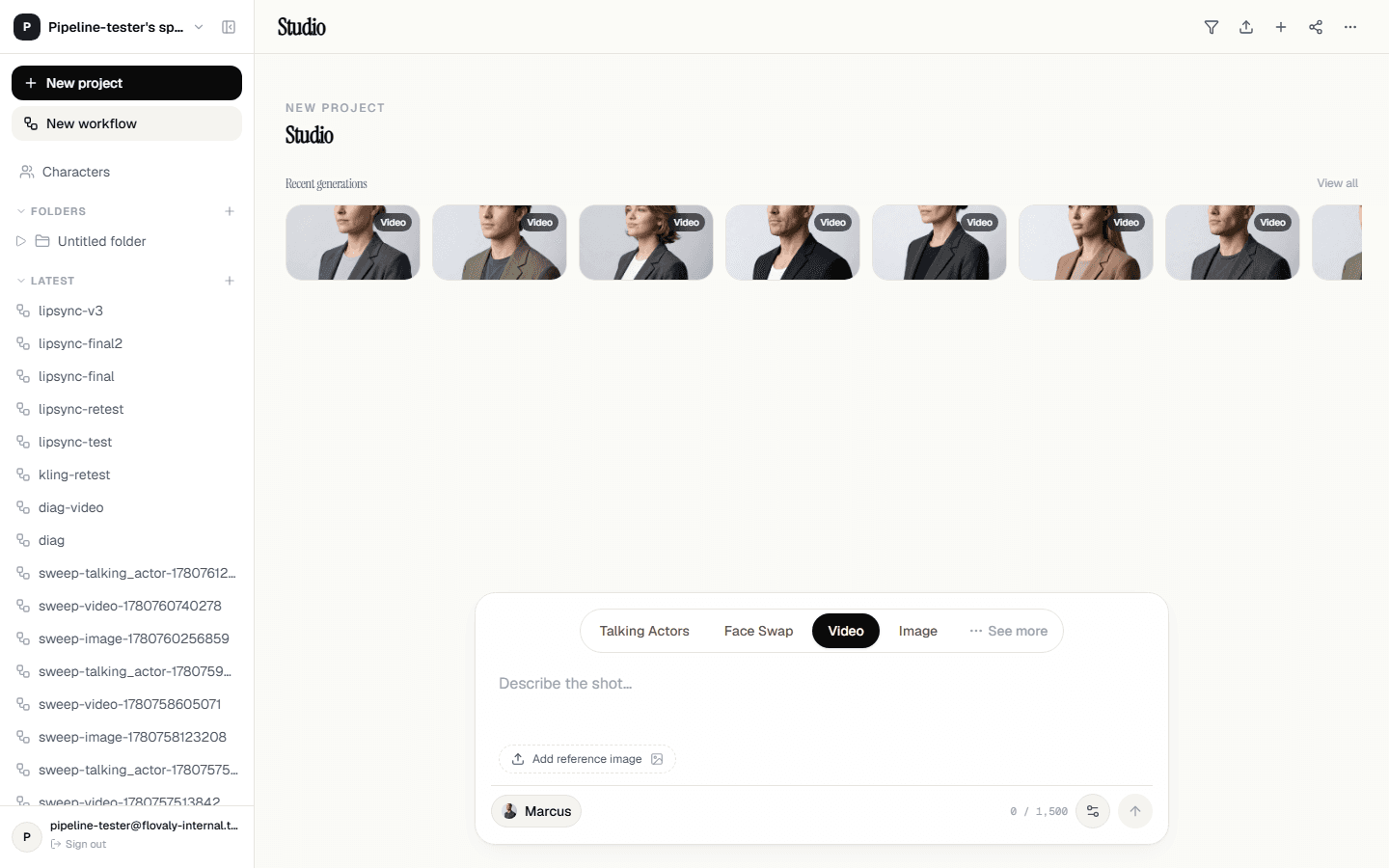
Open the Studio and click the Video tab in the composer mode row. The textarea placeholder changes to “Describe the shot…”— that's your prompt area.
The character chip in the footer is still there. A character keeps identity consistent across shots, but Video mode does not require one — leave the chip empty for pure text-to-video.
2. Write a prompt that works
Video models reward concrete, visual language. A simple structure that lands well:
- Subject — what or who is in shot.
- Action— what they're doing.
- Setting — where, and the lighting.
- Camera — angle, lens, movement if any.
For example: “A barista pulling a single shot of espresso, steam rising, warm window light, shot on a 50mm lens, slow push in”. Skip adjective stacks like “stunning, cinematic, masterpiece” — they don't help and they crowd out the real direction.
3. Set duration and resolution
The settings gear in the composer footer opens an inline sheet with two controls:
- Resolution — 720p or 1080p. 1080p costs meaningfully more credits per second and takes longer to render. Use 720p for drafts and testing; 1080p when you know the prompt is right.
- Duration — 5, 10, or 15 seconds. Charged linearly: a 10s clip costs twice a 5s clip at the same resolution.
The exact credit count for your current settings is shown next to the run button before you click.
4. (Optional) Add a reference image
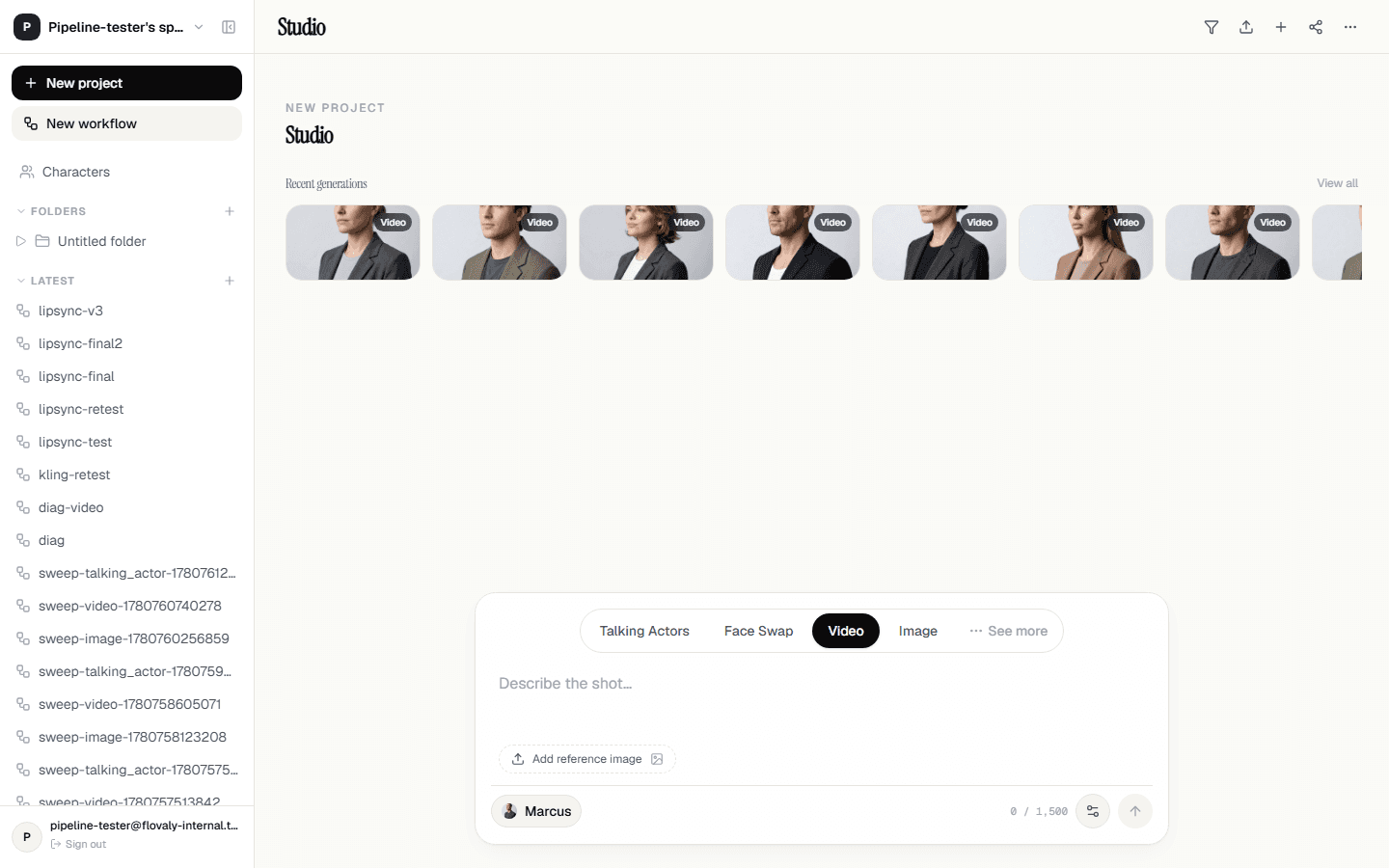
Below the prompt area there's a small Add reference image button. Attach a still — a product shot, a frame from a film, a brand reference — and the model uses it as a visual anchor for style and composition. Hugely useful for brand-consistent output.
5. Run and review
Hit the dark arrow. The queued status card appears above the composer and you can keep editing while the job runs. When the render completes you're routed to the gallery; from there you can play, download, or queue a re-run with tweaked settings.
Iterating efficiently
Most prompts need two or three passes. A workflow that saves credits:
- Start at 720p and 5 seconds while you're finding the prompt.
- Re-run with small prompt edits — add one piece of direction per pass.
- When the 5s draft is the shot you want, re-run at 1080p and your final duration.
What next
For text + image flows, see Generating images. For repeatable pipelines that chain a written prompt into an image into a video, jump to Building your first workflow.
Frequently asked questions
How much does AI video generation cost on Flovaly?
Cost scales with your settings: duration is charged linearly (a 10-second clip costs twice a 5-second one at the same resolution) and 1080p costs meaningfully more per second than 720p. The exact credit count for your current settings is always shown next to the run button before you click.
What durations and resolutions are available?
Clips render at 5, 10, or 15 seconds, in 720p or 1080p. Use 720p for drafts and testing, and switch to 1080p once you know the prompt is right.
Do I need a character for Video mode?
No. The character chip is optional in Video mode — casting one keeps identity consistent across shots, but leaving it empty gives you pure text-to-video.
How do I save credits while iterating on a prompt?
Start at 720p and 5 seconds while you find the prompt, change one piece of direction per pass, and only re-run at 1080p and your final duration once the 5-second draft is the shot you want.
Was this useful? Email us if anything's missing.
Next