Get started
Getting started with Flovaly
Create your account, learn what credits are, and find your first character.
4 min read
In short: To get started with Flovaly, sign up at flovaly.com/signup with Google or email, open the Characters library to pick a free premade actor, then open the Studio and run your first generation. Every plan includes a monthly credit allowance, and the composer always shows the credit cost before you run — the whole setup takes about three minutes.
This guide gets you from a blank browser tab to a working Flovaly account with credits ready to spend. It takes about three minutes.
1. Sign up
Head to flovaly.com/signup. You can register with Google in a single click, or use email and a password. Either path drops you on the same dashboard — there is no separate verify step for the Google flow.
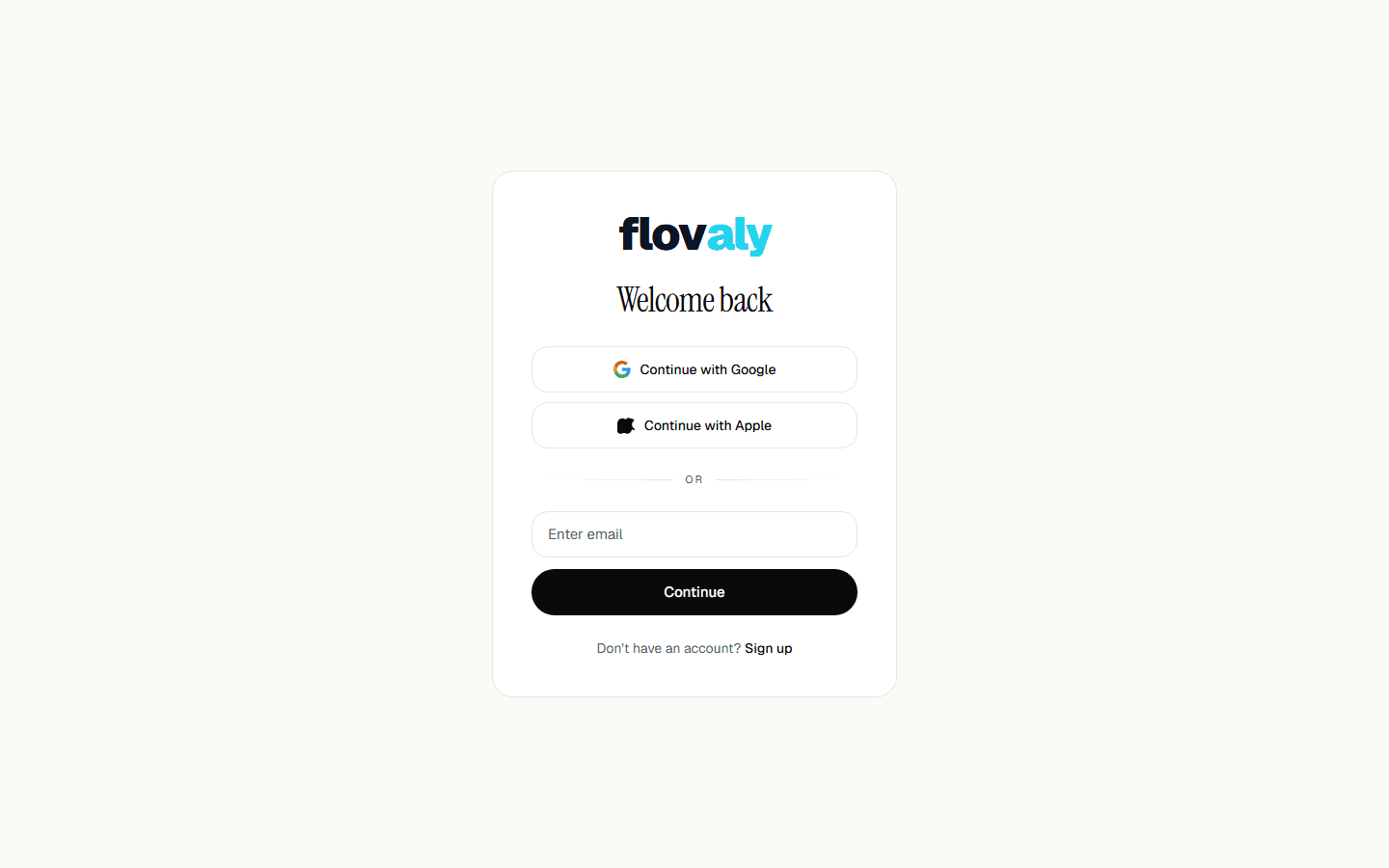
If you came in through Google, your display name and avatar are copied from your account. You can change both later in account settings.
2. Land on the dashboard
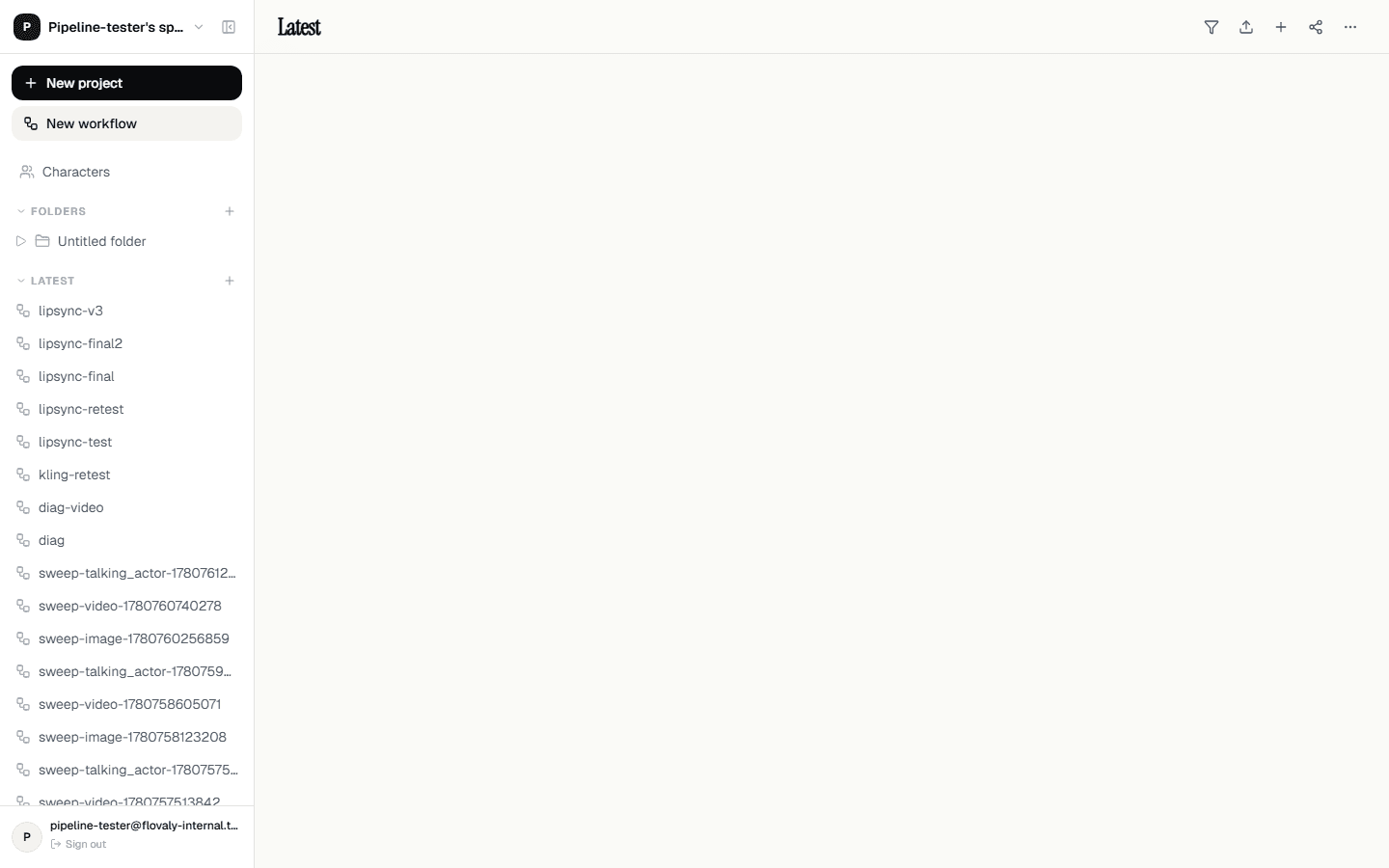
First time in, you arrive at the dashboard with the left sidebar already pinned. The five things you will use day to day live there: Studio, Workflows, Characters, Gallery, and any projects you create. The top-right corner shows your remaining credits and a link to upgrade.
3. Understand credits
Credits are how Flovaly meters generation. Every plan, including free, comes with a monthly credit allowance. A rough mental model:
- 1 credit = one still image
- 1 credit per 5 seconds of generated video
- 1 credit per ~8 seconds of a talking-actor clip (script + lip-sync)
- 3 credits to fan out three actor variations from a prompt
These numbers are deliberately round — the actual cost depends on resolution and model. You always see the credit cost in the composer before you hit run, so nothing surprises you.
4. Find your first character
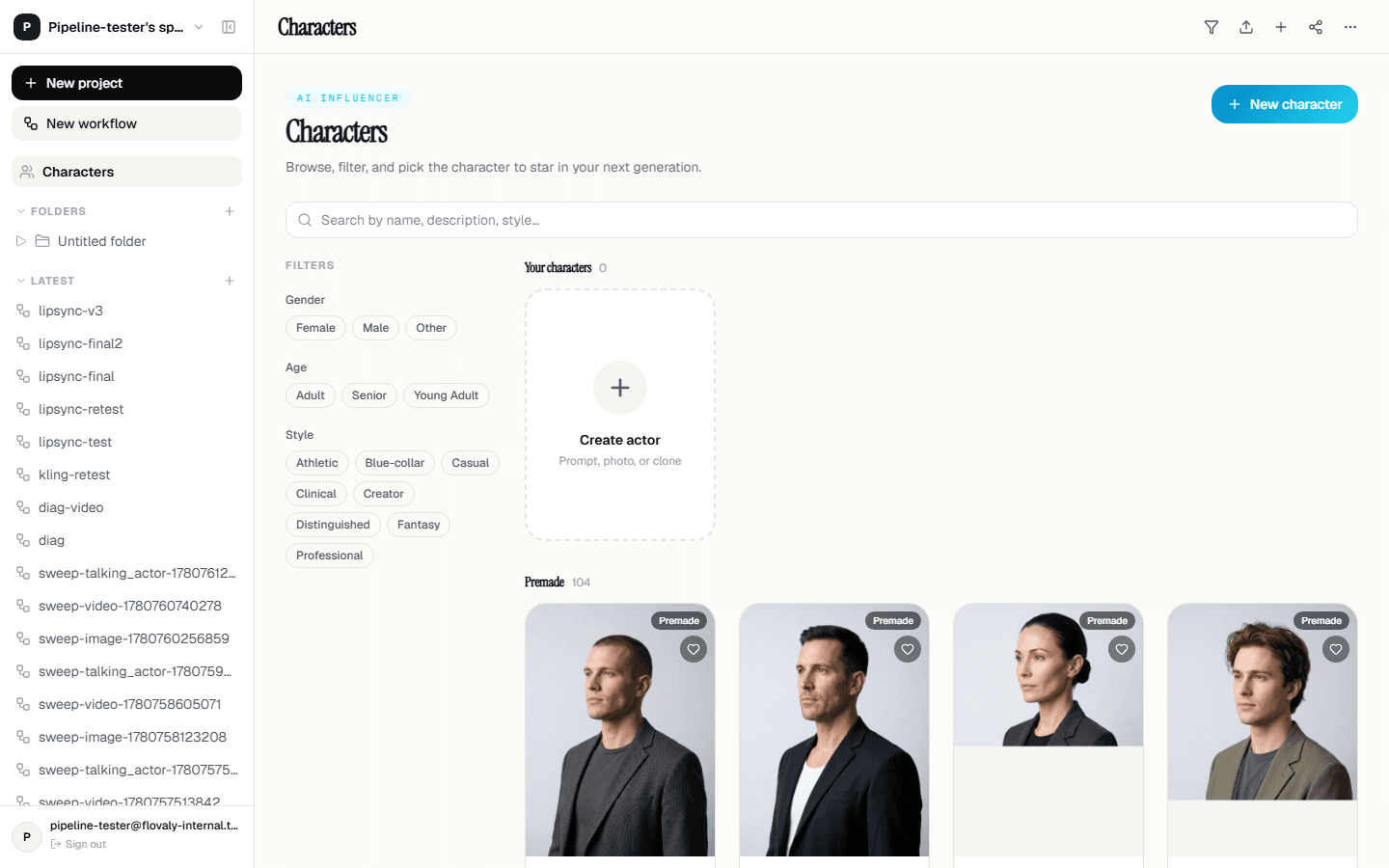
Open Charactersin the sidebar. Flovaly ships a starter library of premade actors covering common styles — fitness coach, professional, casual, presenter — and a range of looks. Hover any tile to see the actor's name; click to inspect. These are free to use and don't consume any credits when you cast them.
Your own custom actors live in the same view, under a separate section. They're empty for now — the Create your own custom actor guide walks you through making one.
5. Open the Studio
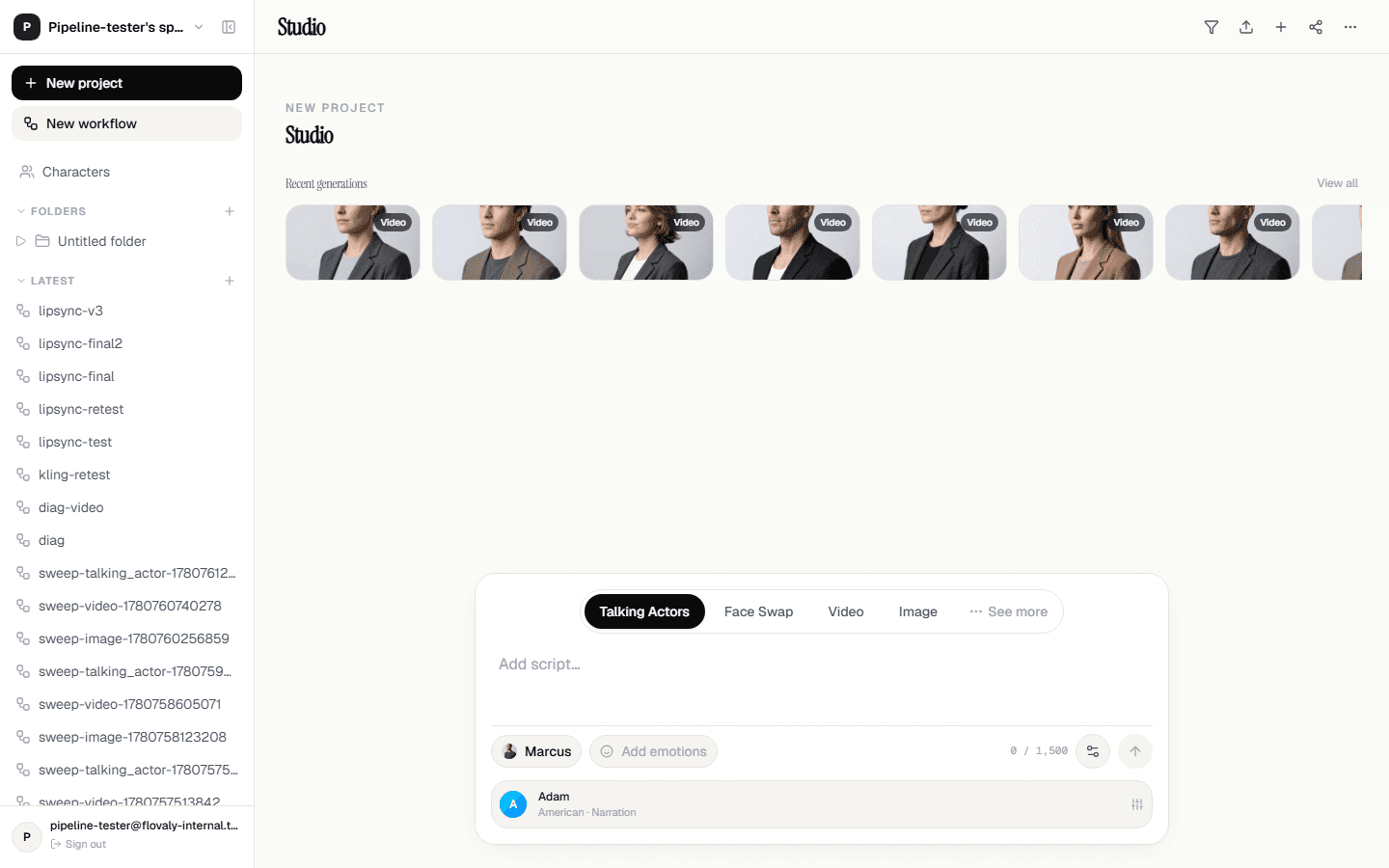
From the sidebar, click Studio. This is the bottom-anchored composer where most of your day-to-day generation happens. You'll see a row of mode tabs at the top of the composer card — Talking Actors, Face Swap, Video, Image — and a prompt area below.
Pick a character with the chip on the left of the footer, type anything into the prompt field, and hit the dark arrow button on the right. Your generation queues, and you're taken to the gallery the moment it finishes.
What next
Either go straight to Make your first video in 60 seconds for a guided run-through, or skim Credits, plans, and billing if you want to know what each plan unlocks before you spend.
Frequently asked questions
How long does it take to set up a Flovaly account?
About three minutes. You can register with Google in a single click or with email and a password — both paths drop you straight onto the dashboard, with no separate verification step for the Google flow.
Do premade characters cost credits to use?
No. The premade actors in the Characters library are free to cast. Credits are only spent when you run a generation — and the composer always shows the cost before you click run.
What do credits buy on Flovaly?
As a rough guide: one credit per still image, one credit per five seconds of generated video, and about one credit per eight seconds of a talking-actor clip. Exact costs vary with model and resolution and are always shown in the composer before you run.
Where can I see my remaining credits?
Your remaining credit balance is shown in the top-right corner of every dashboard view, alongside a link to upgrade your plan.
Was this useful? Email us if anything's missing.
Next