Get started
Create your own custom actor
Three options — from prompt, from an image, or from a clone video. When to pick each.
5 min read
In short: To create a custom AI actor on Flovaly, open Characters from the sidebar, click Create actor, and pick one of three methods: Create generates three variations from a text prompt for 3 credits, Upload builds the actor from a single photo, and Clone copies both the face and voice from a two-minute video. The finished actor is reusable across every mode — talking actors, video, image, and face swap.
A custom actor is your own character, reusable across every mode. You build one once and cast them in talking-actor clips, video shots, image stills, and face swaps — with consistent identity throughout. Flovaly gives you three ways to create one.
Where to start
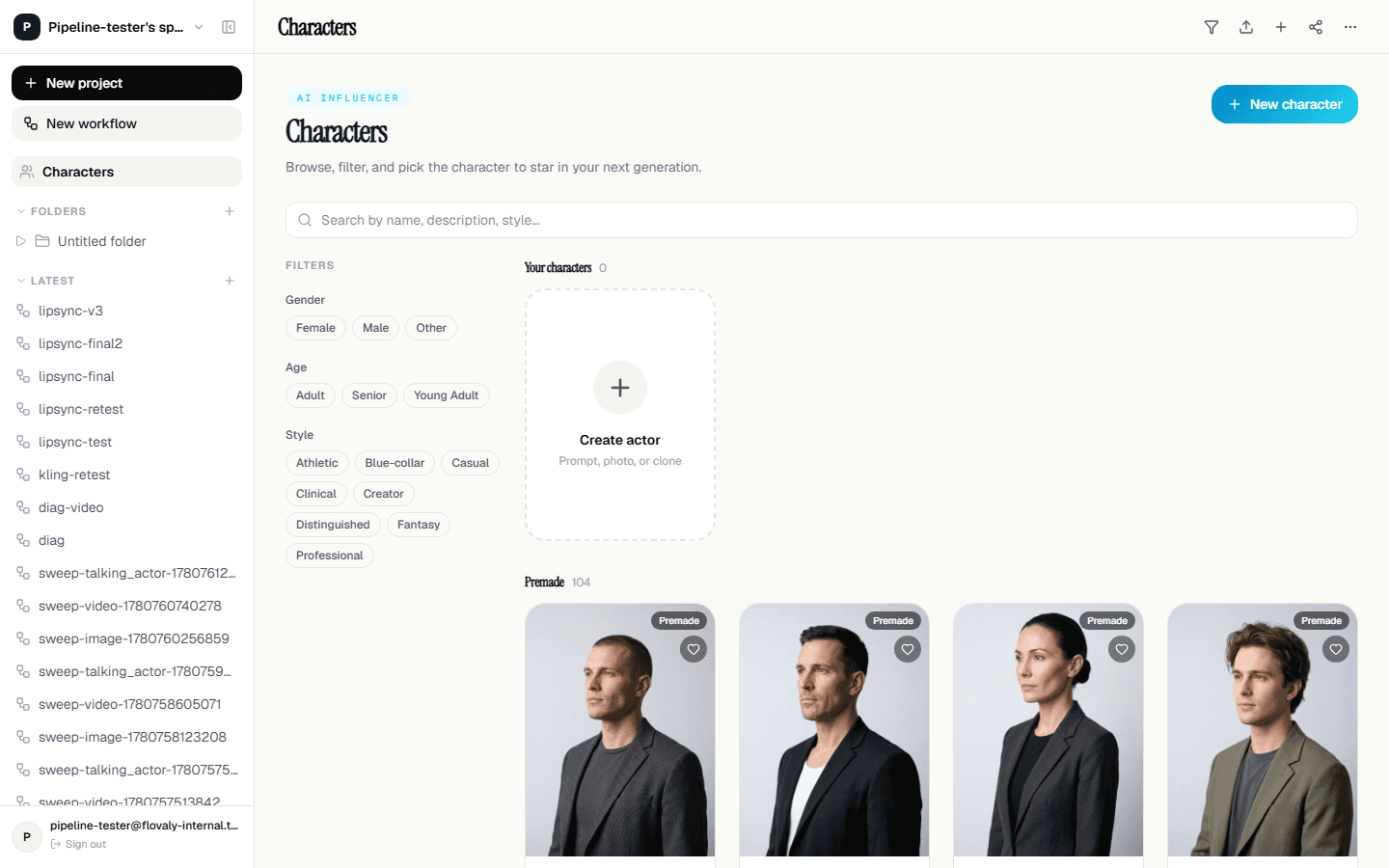
Open Characters from the sidebar, then click Create actor(or the “+” tile at the top of the grid). The modal that opens shows three options, stacked top to bottom: Create, Upload, Clone. Pick the one that matches what you already have.
Option 1 — Create from prompt
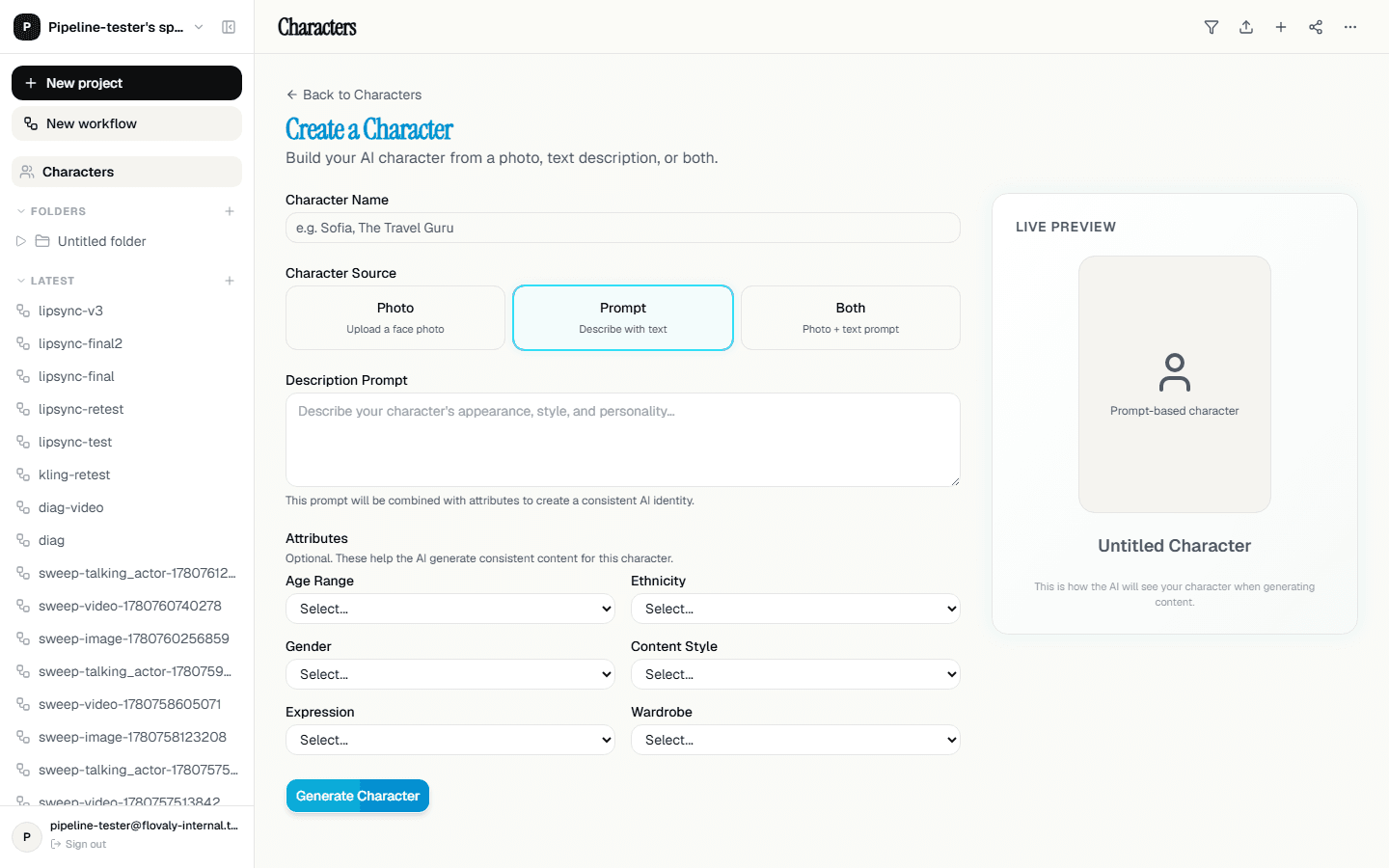
The default option. You describe the actor in plain text and Flovaly generates three visual variations side by side. You click the one you like, give them a name, and save.
- Type a short descriptor — “Mid-thirties fitness coach, short hair, neutral background” works well. Keep it under one sentence.
- (Optional) attach a reference image with the image icon. The generated variations bias toward what it shows.
- (Optional) cycle the aspect ratio between 9:16, 1:1, and 16:9 to match where you'll mostly use the actor.
- Hit Generate (costs 3 credits). Three tiles fill in. Click your favourite — the selected tile gets a cyan border.
- Hit Select your Actor at the bottom. The actor saves and appears in your characters library.
Best when you don't have a real person in mind and you want the model to invent one.
Option 2 — Upload from an image
Got a reference photo? Upload it and the actor is built from that single still. Faster and cheaper than Create — no variations are generated.
- Pick Upload from the chooser.
- Drop or choose a JPEG, PNG, or WebP. The file becomes the actor's starting frame.
- Describe what the actor should do in the field above. A line like “talk with excitement while looking at the camera” gives the model direction for later talking-actor renders.
- Hit Turn into talking actor. The actor saves and is ready to cast.
Best when you have a clean reference shot and you want the actor to look like that person, not an invented one.
Option 3 — Clone from a 2-minute video
The highest-fidelity option. You upload a continuous video of the person speaking, and Flovaly clones both face and voice.
- Pick Clone from the chooser.
- Name the actor.
- Upload an MP4, MOV, or WebM up to 100MB. The video must be at least two minutes long and follow the tips shown in the right-hand sidebar: face fully visible, mouth never covered, continuous speech, natural tone.
- Hit Next. The upload queues. You'll be notified when the clone is ready to cast.
Best when the actor is a real person you have permission to use — a founder, a spokesperson, yourself. Voice cloning is what makes this option different from Upload.
Which to pick
- No reference, just an idea → Create.
- One good photo → Upload.
- Real person, full consent, want their voice too → Clone.
What next
With a custom actor in your library, head to The Talking Actors mode in depth or Face Swap mode to put them to work.
Frequently asked questions
How many credits does creating a custom actor cost?
Generating an actor from a text prompt costs 3 credits and returns three visual variations to choose from. Building an actor from an uploaded photo is faster and cheaper because no variations are generated.
What video do I need to clone an actor?
A continuous MP4, MOV, or WebM up to 100MB and at least two minutes long, with the face fully visible, the mouth never covered, continuous speech, and a natural tone. Cloning copies both the face and the voice.
Which actor creation method should I choose?
Use Create when you have no reference and want the model to invent a person. Use Upload when you have one good photo the actor should look like. Use Clone when the actor is a real person you have permission to use and you want their voice too.
Can I use a custom actor in every mode?
Yes. A custom actor is reusable across every Flovaly mode — talking-actor clips, video shots, image stills, and face swaps — with a consistent identity throughout.
Was this useful? Email us if anything's missing.
Next